How to build a registration form in RegattaHub
The registration form builder lets you ask exactly what your event needs: questions grouped in sections, answered once per boat or by each sailor, follow-ups that appear only when they apply, and priced extras such as dinner tickets. Check it all with Preview as a sailor before you open entries.
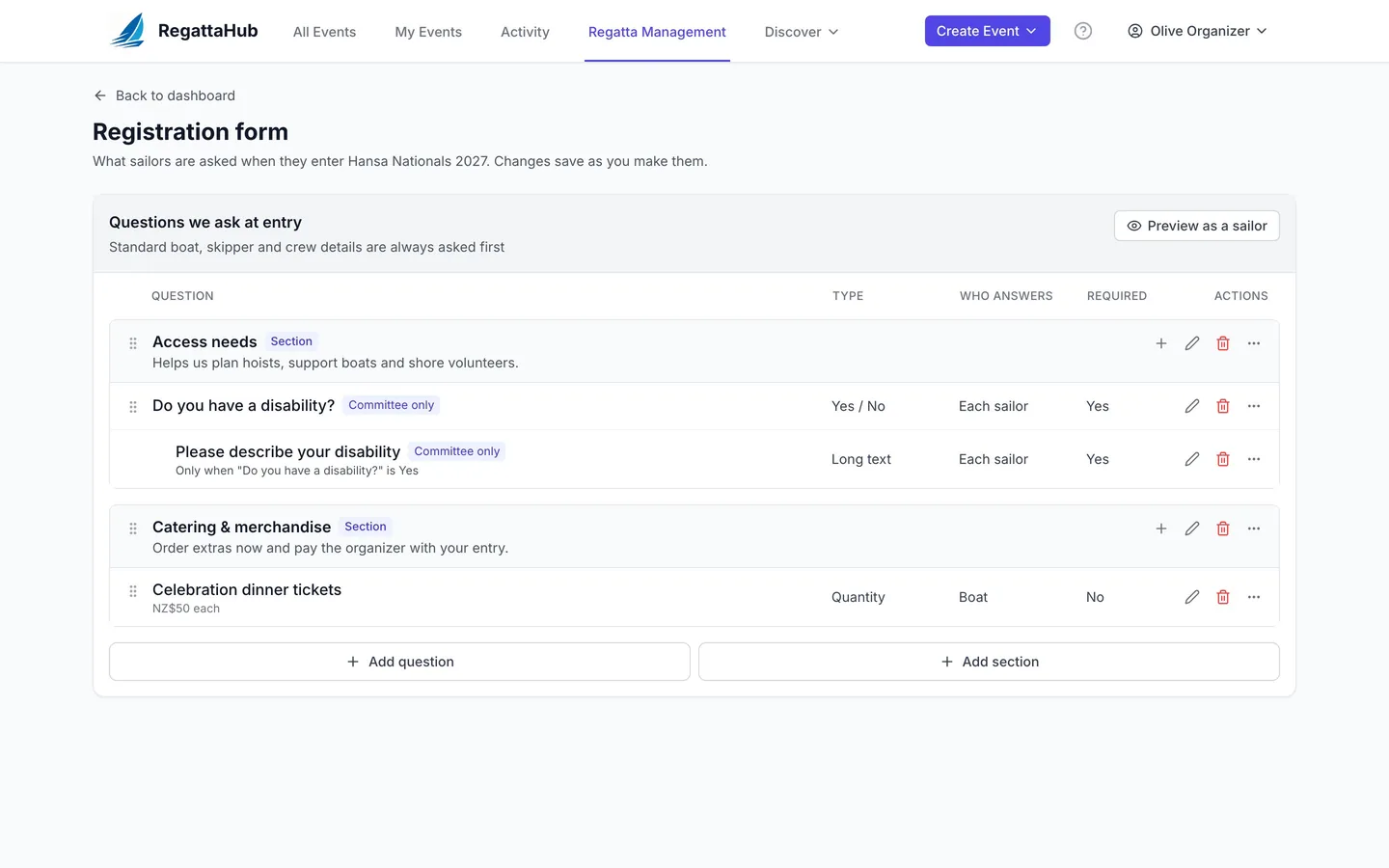
Every regatta asks something different: T-shirt sizes, dinner tickets, whether a boat needs a berth, access needs, a medical contact. The registration form builder puts those questions on the entry form in the order you choose, asks personal questions of each sailor rather than the skipper, and adds priced extras to what the boat owes.
Where to find it. From your regatta dashboard, press Registration form under Quick Actions. Every organizer has it.
The page is titled Registration form. Changes save as you make them. Standard boat, skipper and crew details are always asked first; your questions follow.
1. Add sections
- Press Add section.
- Enter a Title, for example Access needs or Catering & merchandise.
- Add a Description if it helps sailors, for example Helps us plan hoists, support boats and shore volunteers. It shows under the heading.
- Press Save section.
Sections appear on the entry form in the order listed. Drag a section by its handle, or use its menu to move it up or down. Deleting a section keeps its questions on the form, without a section.
2. Add questions
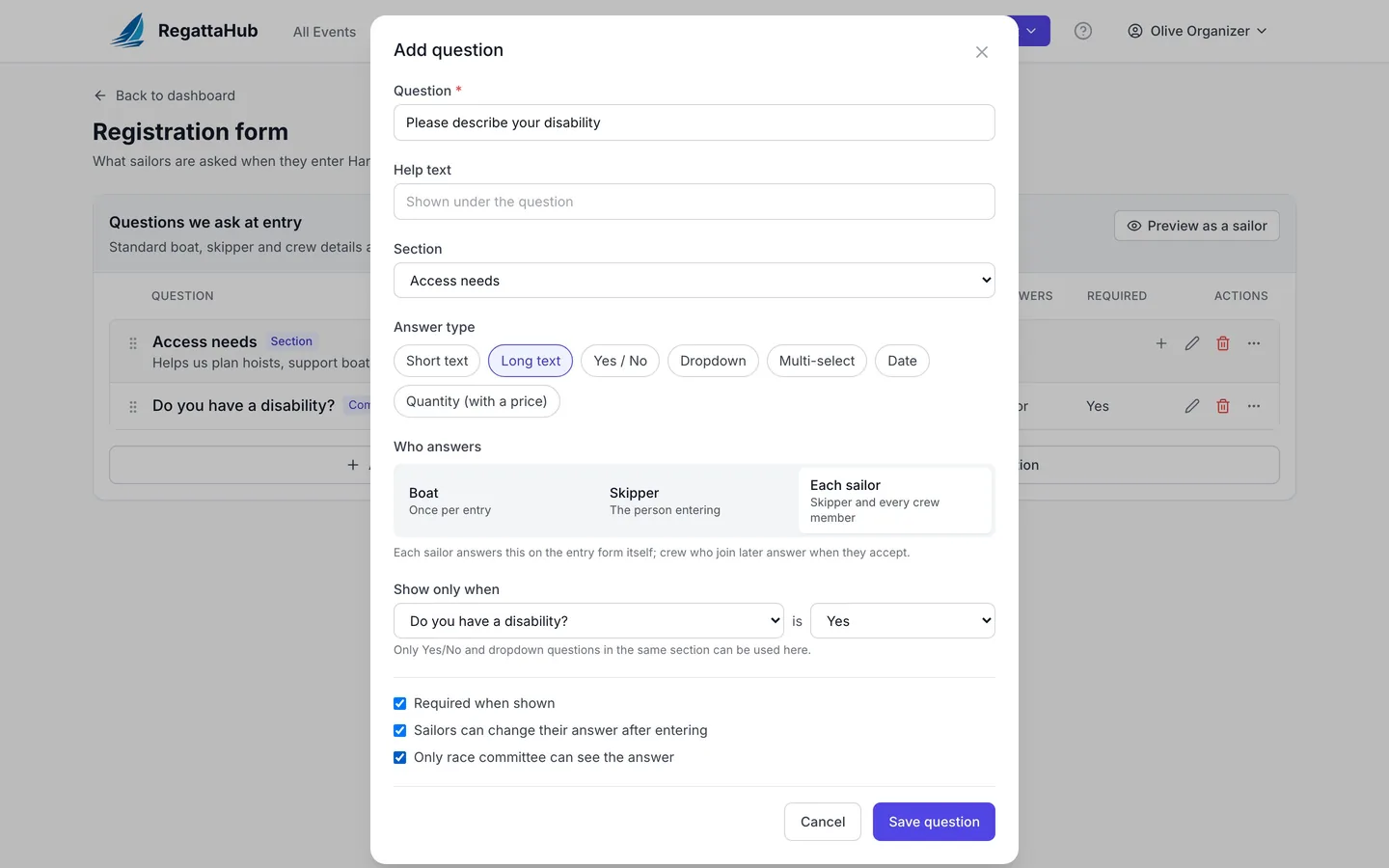
Press Add question, or the + on a section, and fill in:
- Question and optional Help text (shown under the question).
- Section: where it appears.
- Answer type: Short text, Long text, Yes / No, Dropdown, Multi-select, Date, or Quantity (with a price).
- Who answers:
- Boat: once per entry.
- Skipper: the person entering.
- Each sailor: the skipper and every crew member, each for themselves.
- Required when shown: the sailor must answer before submitting.
- Sailors can change their answer after entering: untick it to lock the answer once the entry is in.
- Only race committee can see the answer: for medical or personal questions. Other sailors, including crewmates, never see it.
Press Save question. Drag questions to reorder them, or use a question's menu to move it to another section.
Use Each sailor for anything personal, such as access needs, clothing sizes or dietary requirements. Crew added on the entry form answer in their own block; crew who join later answer when they accept their invitation (see crew invitations). Once sailors have answered a question, who answers it can no longer change.
3. Add follow-up questions
A follow-up appears only after a particular answer. For example, ask each sailor Do you have a disability? (Yes / No), then Please describe your disability only when the answer is Yes:
- Add the first question: answer type Yes / No, who answers Each sailor.
- Add the follow-up in the same section: answer type Long text, who answers Each sailor.
- Under Show only when, choose Do you have a disability? and the answer Yes.
- Tick Required when shown. It is required only while it is visible; a sailor who answers No is never asked.
Only Yes / No and dropdown questions in the same section can trigger a follow-up. In the builder, follow-ups sit under their question with a line such as Only when "Do you have a disability?" is Yes. Deleting the first question makes its follow-ups always show.
4. Add priced extras
Choose the answer type Quantity (with a price) for anything sailors order and pay for with their entry, such as dinner tickets or event T-shirts.
- Price each: for example 50. Leave it blank for a free quantity, such as prize-giving tickets you want to count.
- Included in the entry fee: how many come free with each answer. With 1 included, the first is free and more are charged at the price each.
- Most per answer: the highest number a sailor can choose.
Sailors choose a number with a stepper and see the line total. The summary itemises it, for example Entry fee NZ$110 + Celebration dinner tickets × 2 NZ$100 = NZ$210 owed. Extras are added to what the boat owes when the organizer collects the fee, and to the card payment when fees are paid online. A Boat quantity is answered once per entry; an Each sailor quantity (a T-shirt each, say) is answered by every sailor.
5. Preview as a sailor
Press Preview as a sailor at the top of the form. A panel opens with the real entry form, filled with sample answers, including your unsaved changes. A banner reminds you that nothing you type there is saved.
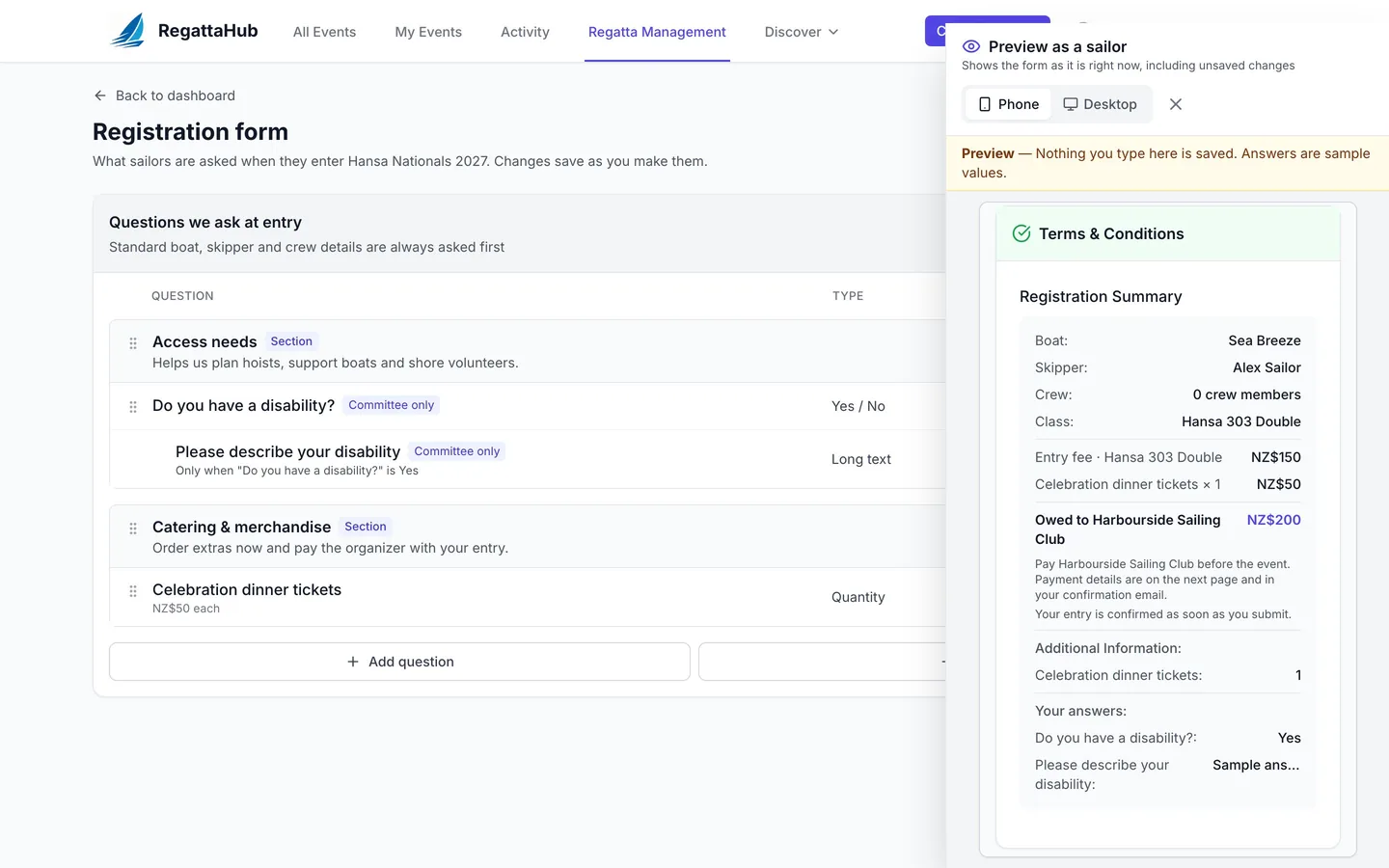
- Follow-ups show a line explaining why they appear, for example Appears because the answer above is Yes.
- The registration summary follows the answers, with every extra itemised.
- Switch between Phone and Desktop to check both widths.
Preview as a sailor is also on the Entry fees & payment settings and on Edit Event Details, so you can check the fee wording at the same time.
After entries open
- Sailors see your sections and questions on the entry form, with follow-ups and the quantity stepper. The same form is coming to the RegattaHub iPhone app.
- Each entry's answers appear on the sailor's entry page, grouped by section and by sailor, and on the entry in your Entries tab.
- To stop asking a question without deleting it, edit it and untick Ask this question on the entry form.
- To see every answer at once, with totals for each extra, use Advanced mode.
Frequently asked questions
Can each crew member answer their own questions?
Yes. Set Who answers to Each sailor. The skipper and every crew member answer in their own block on the entry form, and crew who join later answer when they accept their invitation.
How do I show a question only when it applies?
Put it in the same section as a Yes / No or dropdown question and set Show only when to that question and the answer that should show it. Tick Required when shown if it must be answered whenever it appears.
How do priced extras like dinner tickets work?
Use the Quantity (with a price) answer type. Sailors choose how many with a stepper, and the price is added to what the boat owes, or to the card payment when fees are paid online.
Can I keep medical answers private?
Yes. Tick Only race committee can see the answer. The answer is visible to the event organizers, not to other sailors or crewmates.
Can I see the form as a sailor before opening entries?
Yes. Press Preview as a sailor. It shows the real entry form with sample answers at phone or desktop width, including unsaved changes, and nothing you type is saved.
Related guides
- → Set up entry fees: online or collected by the organizer No fee, fees you collect yourself by bank transfer or cash, or card payments online — and how to record payments as they arrive.
- → Crew invitations: adding crew and their own answers How skippers add crew, what the invitation email does, and how crew answer their own questions when they accept.
- → Advanced mode: every answer, payment and rating Every entry’s answers, owed and paid, and ratings in one grid: edit in place, total the extras, export to CSV.
First regatta free
No monthly fees. No commitment. Try RegattaHub on a real event at zero cost.
Go to App