How to review answers, payments and ratings in Advanced mode
Advanced mode is a spreadsheet of your entries: one row per boat or per sailor, a column for every question, what each boat owes and has paid, and each boat’s rating. Edit answers in place, total your extras, and export exactly what you see to CSV.
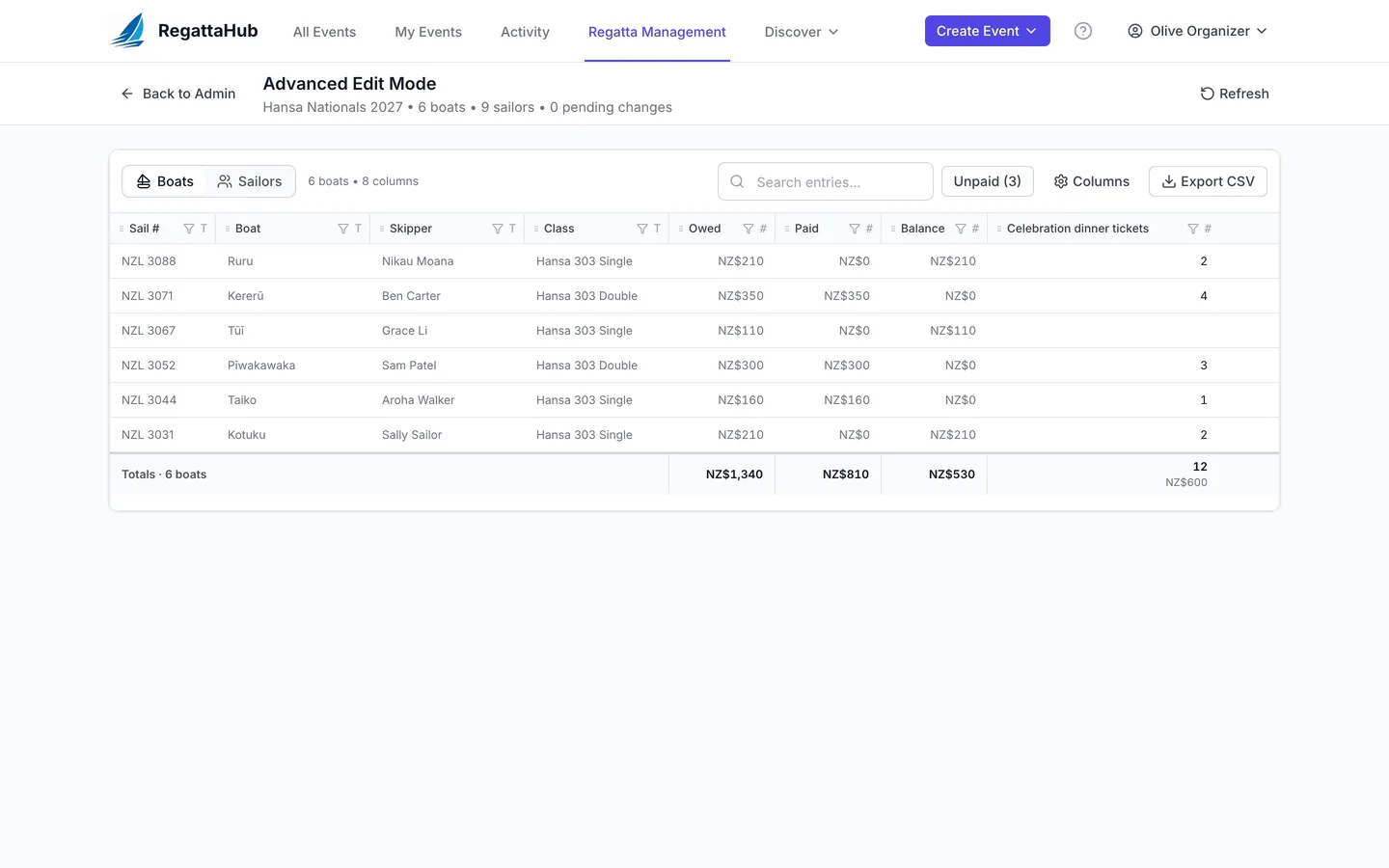
Once entries arrive, you need the answers in one place: how many dinner tickets to order, who needs the hoist, which boats still owe money, whether every handicap boat has a rating. Advanced mode shows all of it in one spreadsheet, and lets you edit many entries at once.
Where to find it. On your regatta's Entries tab, press Advanced mode (the button with a table icon). Its info icon sums it up: "A spreadsheet of every entry: edit many entries at once, see every answer, rating and payment, and export to CSV." It is available on every regatta.
Boats and Sailors
Switch between two views at the top left:
- Boats: one row per entry, with sail number, boat, skipper and class, then Owed, Paid and Balance, a column for each question answered once per boat, and the class's rating (for example Portsmouth Yardstick number).
- Sailors: one row per person, with their boat and role (skipper or crew), and a column for each question asked of each sailor, follow-ups included.
Committee-only questions are marked in their column heading. A Totals row adds up the columns that have totals, such as the number of dinner tickets and what they are worth, or how many sailors answered Yes.
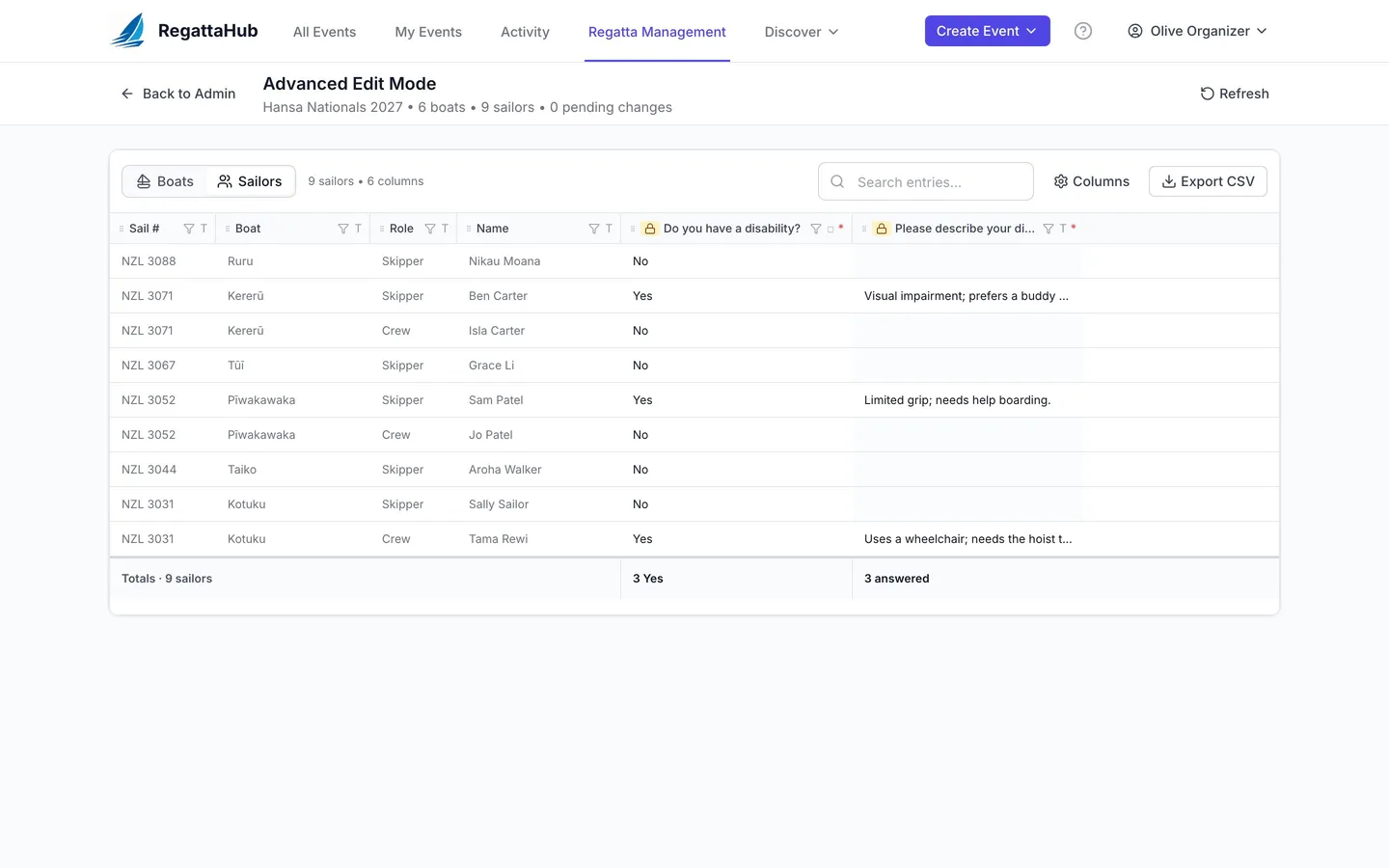
Find what you need
- Columns chooses which columns to show.
- Each column heading can filter and sort.
- Search entries finds a boat, sailor or answer.
- Unpaid shows only entries with a balance still due.
Edit answers in place
- Click a cell and change the answer.
- The change goes through the same checks as the entry form; a quantity can't go over its most per answer, for example.
- It saves straight away. If you change a quantity, the entry is re-priced: for example, a third dinner ticket turns NZ$210 owed into NZ$260.
To record a payment, open the entry from the Entries tab and use Mark as paid.
Ratings
For classes scored with a rating system, Advanced mode shows each boat's rating in a column named after it, for example Portsmouth Yardstick number or your own rating name. You can:
- Spot boats with no rating yet. A finisher without a rating stops that race's results from being published until one is entered (see scoring warnings).
- Correct a number a sailor entered. Changing a rating recalculates the class's finished and published races.
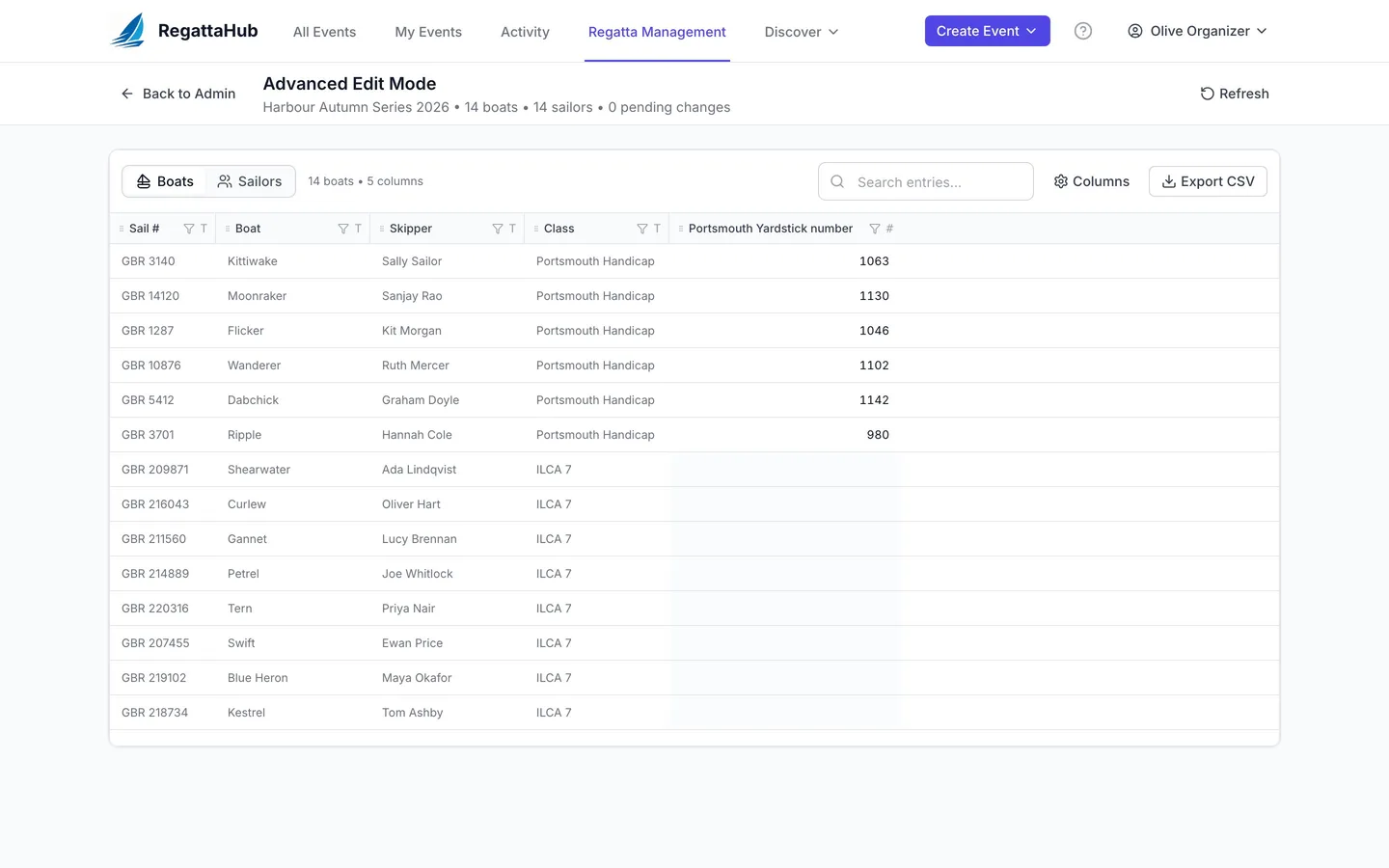
More on ratings, including how sailors enter them, in Custom handicaps and rating systems.
Export to CSV
Press Export CSV to download exactly what you see (the view, columns and filters you chose), totals included. Handy for the caterer, the safety team or the club office.
Frequently asked questions
How do I see every answer to my entry questions?
Open Advanced mode from the Entries tab. Boats shows the questions answered once per boat; Sailors shows the questions each sailor answers, one row per person.
Can I count how many dinner tickets have been ordered?
Yes. The Totals row adds up quantity questions, with the number ordered and what they are worth.
Can I change a sailor’s answer?
Yes. Click the cell and change it. The edit is checked like the entry form, saved straight away, and a changed quantity re-prices the entry.
Can I export the answers?
Yes. Export CSV downloads the current view, with your chosen columns and filters, totals included.
Where do I correct a boat’s rating?
In the rating column of Advanced mode (or on the entry). Changing a rating recalculates the class’s finished and published races.
Related guides
- → Build your registration form: sections, follow-ups, extras Sections, questions for each sailor, follow-ups that appear only when they apply, priced extras, and Preview as a sailor.
- → Set up entry fees: online or collected by the organizer No fee, fees you collect yourself by bank transfer or cash, or card payments online — and how to record payments as they arrive.
- → Custom handicaps: Portsmouth, IRC and your own formula RYA Portsmouth and IRC, or your own rating formula in e, r and d with a rating name, usual range and Check panel.
First regatta free
No monthly fees. No commitment. Try RegattaHub on a real event at zero cost.
Go to App